
The April 2022 General Conference Workbook got a bit of an update this year. While most of it is pretty similar, I’m so excited to be able to finally share with you the half letter sized version (5.5×8.5 inches)! This is one of my favorite sizes to use and I love the updated look!
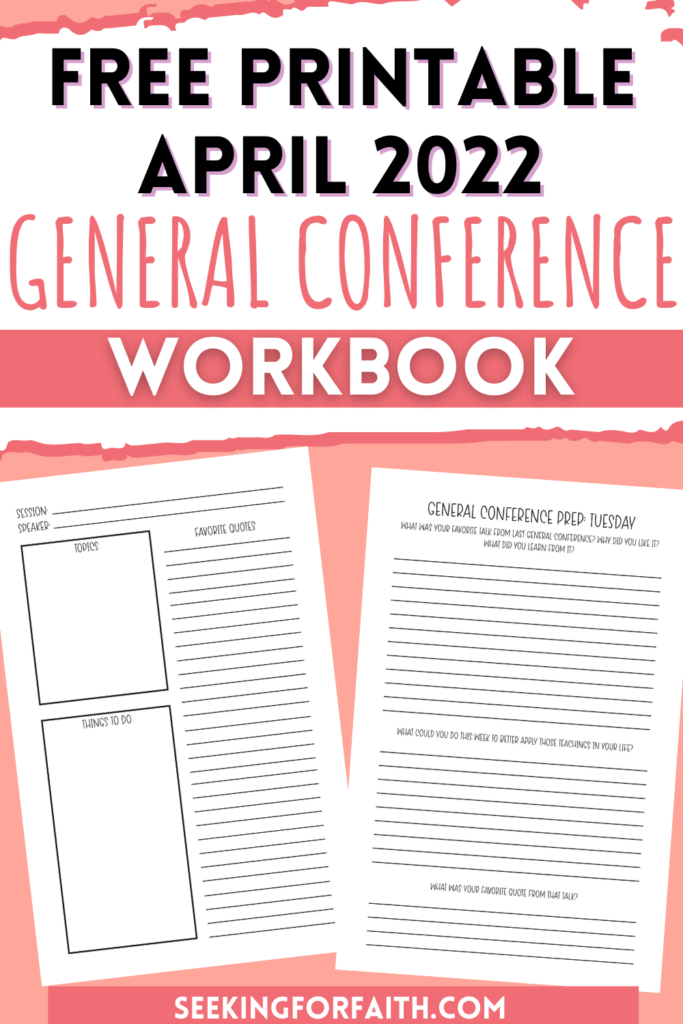
April 2022 General Conference Workbook
In the past I’ve offered this as a paid product, but I’ve decided to offer this version (at least for now) as a freebie.
It includes the same things that the previous 8.5×11 inch versions have, just in a more compact size. You’ll still get space for 38 talks, plus a week of prep prompts for the week before General Conference, and a week of review prompts for after Conference. This is one of my favorite parts because it will help you to know how you can put the information you’ve learned into action in your life.
I also have some more exciting things planned for helping you to better study the April 2022 General Conference over the next 6 months, so be sure to subscribe to the newsletter so you don’t miss anything!
Printing Tips
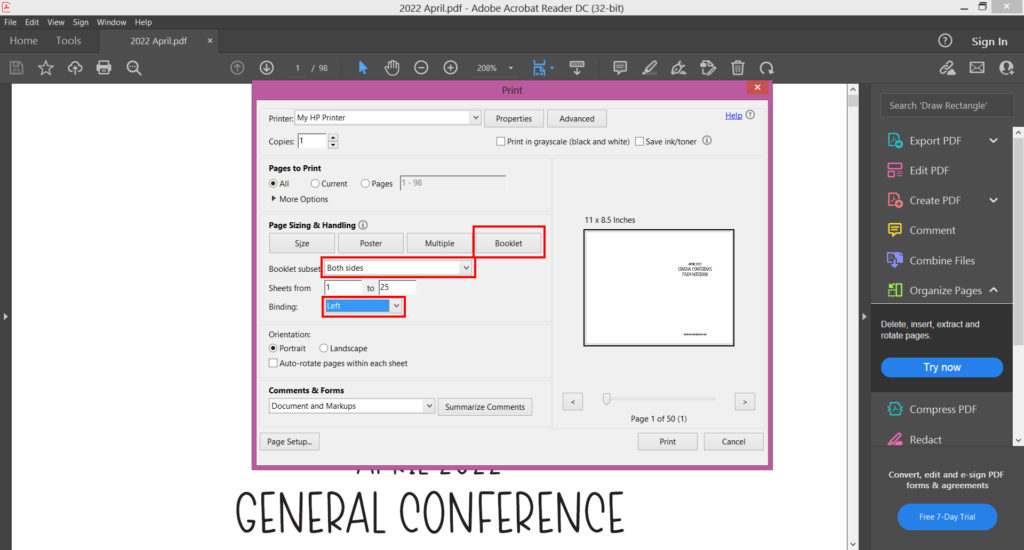
This PDF is designed to be printed with the BOOKLET style setting. This can be found in the print window (seen below) and it makes it really easy to print the pages in the right order so the front and back of each page are in the right spot.
(If you don’t have double sided printing, read further below for tips on doing it single sided).
Here are some settings to make sure you have set (refer to the image below for where to find them). Please note that I am using the free version of Adobe Reader to print through a PC computer. Other PDF reader programs and Mac/Apple computers may be a bit different, but all should (no guarantees) have this setting.
1- Select BOOKLET printing
2- Print on both sides of the paper (if your printer has those capabilities)
3- Binding: Left
4- It’s much easier to print the entire document at one time (instead of a few pages at a time). But if you do need to print in smaller increments, make sure you have your pages in the right order before binding.
If you are printing at an office store (Staples, Office Depot/Max, FedEX), then ask them to print it booklet style. They may not know to do that automatically.
After Your Pages are Printed
After all your pages have printed, cut them all in half down the middle, being careful to keep them in order. I like to lay them out after they are cut the same way they looked before they were cut.
Once they are all cut, then pretend to fold them in half along the line where you just cut. Like a book. Your cover page should be on the top now. Double check to see if all the pages are in the correct order before binding.
IF YOU DON’T HAVE DOUBLE SIDED PRINTING
If your printer can’t print double sided, then it is still easy to print. Just choose the MULTIPLE option instead of booklet printing. Then print two pages per sheet.
Once they are all printed, cut them in half, and bind with your choice of binding. Your pages will be single sided, but they will all be there and should be easy to place in the right order.
Printing the Covers
In the folder with the workbook file, you will also see a file with the cover options (there are two choices). Print the page of your cover choice on the highest quality setting, with borderless printing if you have that option. (If not, you’ll just have a small white edge around the border). Once the page has printed you have a couple choices.
You can laminate the whole page, and then cut it in half (one side for the front, one for the back) down the middle.
OR you can cut it in half first and then laminate the page separately (this will use an extra lamination sheet, but its more secure in keeping the lamination from peeling from the binding edge).
I’ve done both ways and they work. I do recommend laminating the cover. Or if you are having it bound at an office store, they often will have cover options that you can add that would also be a durable choice and then laminating isn’t necessary.
I’d Love to See Your Workbook!
I’d love to see how you are using your General Conference Workbook! If you share on social media, tag us @seekingforfaith. I hope you love this workbook and let me know if you have any questions of suggestions for future improvements in the comments!
